

Forgot to enable DJI HorizonSteady before recording? No Problem! You can easily correct a tilted horizon using AI.
AI Horizon Fixer for Premiere is a plugin for Adobe Premiere. Its local neural network uses artificial intelligence to estimate camera roll from the visible image and apply a correction inside your edit. The plugin Requires Adobe Premiere 25.6.5 or later.
Correct a consistently tilted DJI clip
- Put the clip in your Premiere timeline, then open Window > Extensions > AI Horizon Fixer
- Move the playhead to a frame with a useful alignment reference and choose At playhead. Keep overlapping footage or graphics out of the analyzed image.
- Leave Add keyframe off. Keep Auto-fill edges on if you want the extension to adjust Scale to cover the rotated corners.
- Click Straighten with AI. Review any warning about replacing existing animation before confirming.
- Play the whole clip in the Program Monitor. If the angle looks wrong, use Preview / Manual Rotation to align the image against a grid or line, then apply the adjustment.
Please refer to the AI Horizon Fixer User Guide for more details.
Use Auto when the horizon changes during the take
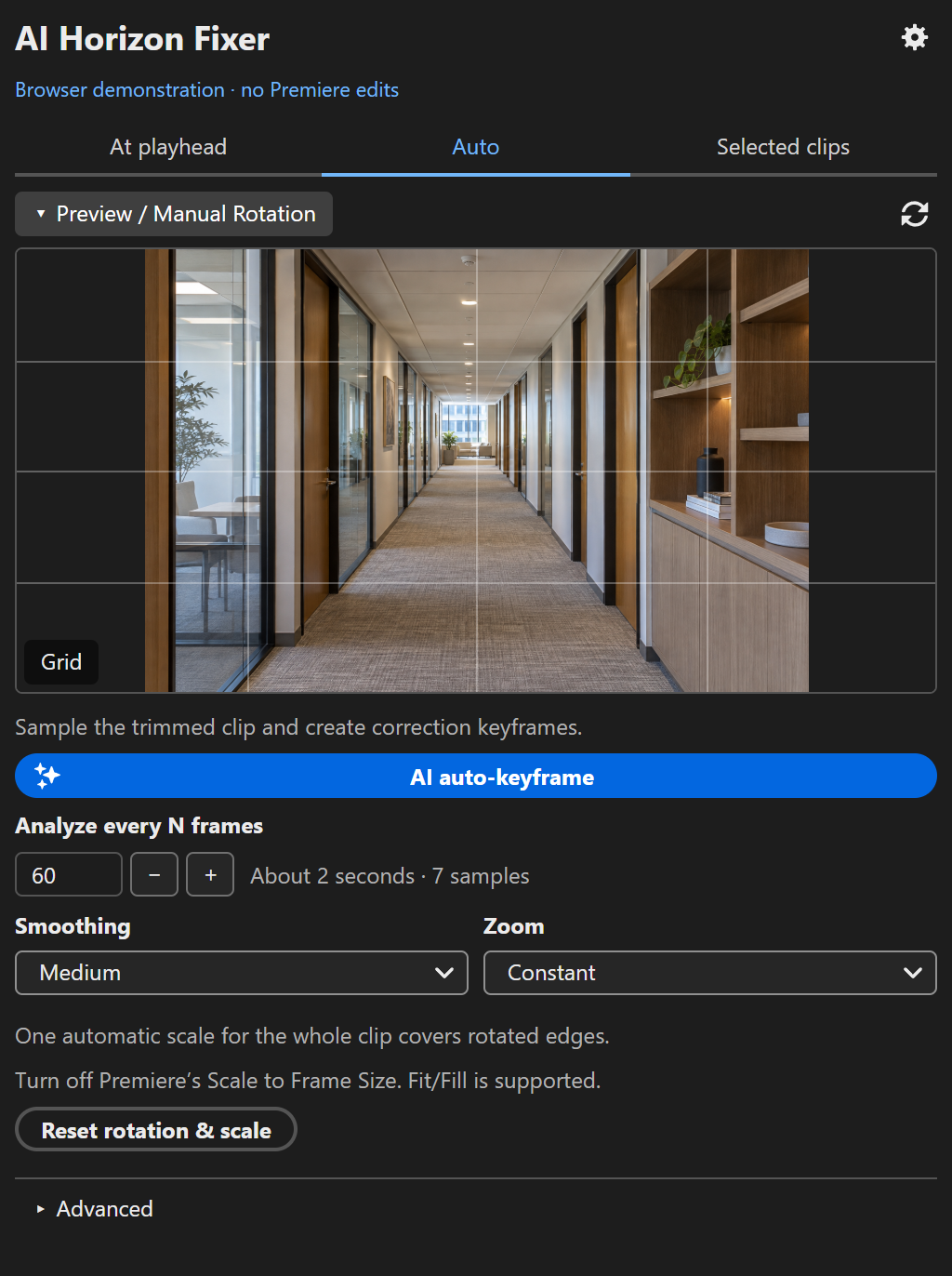
Select one supported video clip and choose Auto. Set Analyze every N frames to choose the sampling interval, choose a Smoothing level, then click AI auto-keyframe. The extension samples the trimmed clip and creates correction keyframes.
Smaller intervals inspect more moments and take more analysis. Wider intervals can miss a quick roll between samples. Smoothing can reduce variation in the correction, but the right amount depends on the shot. Review the movement between samples as well as the sampled frames.
Choose the crop you can accept
Straightening a tilted horizon can expose empty corners. Covering them requires a tighter frame. With keyframed correction, Constant zoom uses one automatic Scale for the clip; Dynamic changes Scale with the correction; Off leaves Scale unchanged so you can manage framing yourself. Dynamic zoom can add visible zoom movement, so compare it with Constant on the full shot.
For automatic keyframe zoom, turn off Premiere’s Scale to Frame Size. Inspect the finished result in the Program Monitor. Check a rider’s head, bicycle handlebars, a boat’s bow or any subject near the frame edge before accepting the crop. A smaller correction may preserve a more useful composition.
Try it yourself
Start with the AI Horizon Fixer user guide or view AI Horizon Fixer on Adobe Exchange for installation and current purchase information.